
COMMERCIAL SELLING
Web Cashier / Self Checkout
There are three ways to use the catalog. Anyone can browse, but the features available depend on whether the customer began on the public website, at an in-world vendor, or at an in-world Self Checkout (Cashier).
1. Three different shopping paths
Browse from anywhere
Open the public storefront or Network directory in any web browser. Search products, view listings and find an in-world vendor location when one is available.
No cart. No Send to Vendor. Browsing by itself does not start a purchase session.
Use a physical vendor
Touch an in-world vendor to start that vendor's session. Browse its catalog and choose Send to Vendor to load a compatible item into that specific vendor, then pay there.
Send to Vendor is vendor-session only. It does not open a cart.
Use Self Checkout
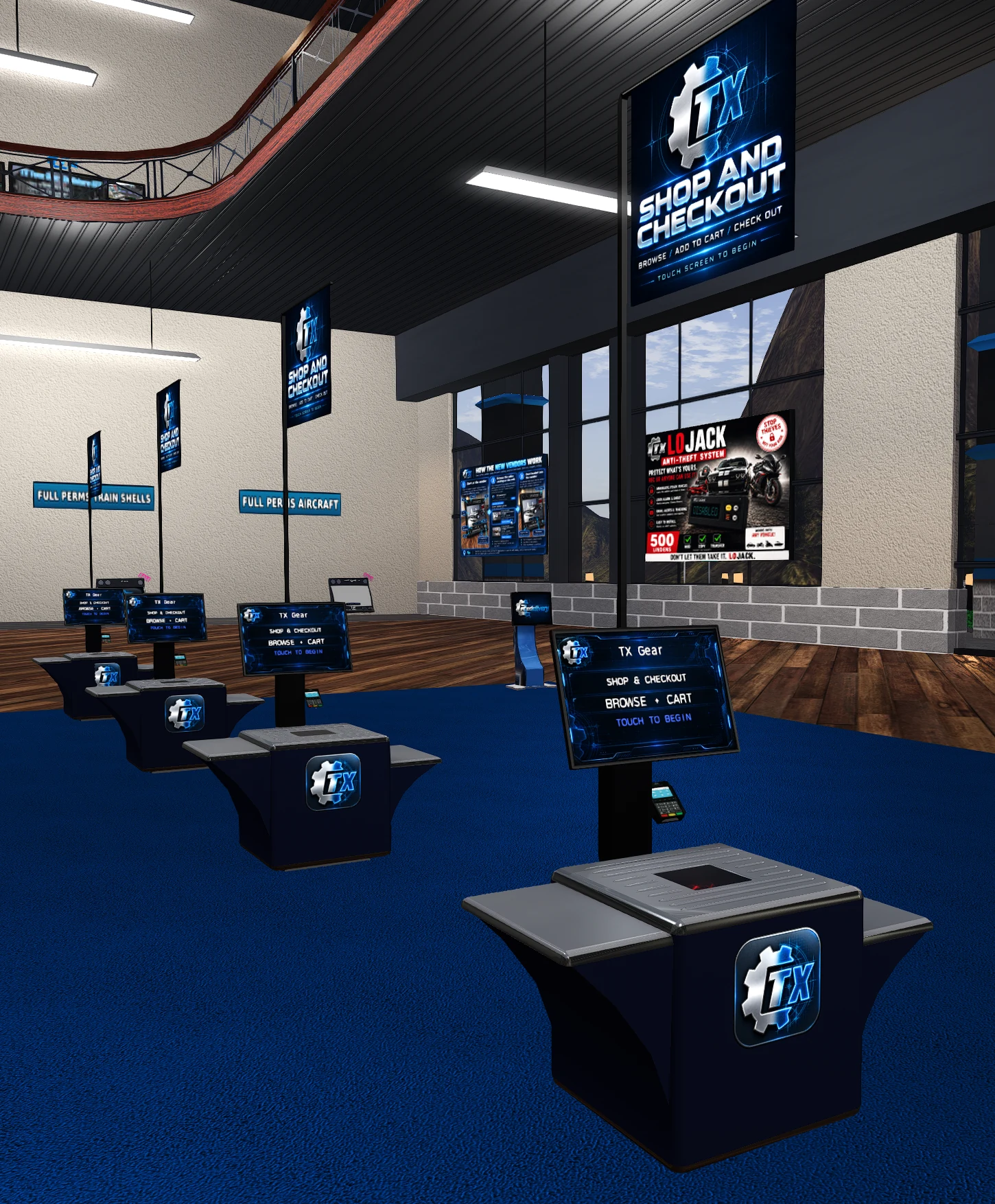
Touch an in-world Self Checkout (Cashier) to start a private shopping session. Browse compatible Commercial products, add them to a Shopping Cart, then pay the cart total once at that Cashier.
The cart is Cashier-session only. It does not appear during ordinary browsing or a physical vendor session.
2. Set up an in-world Cashier
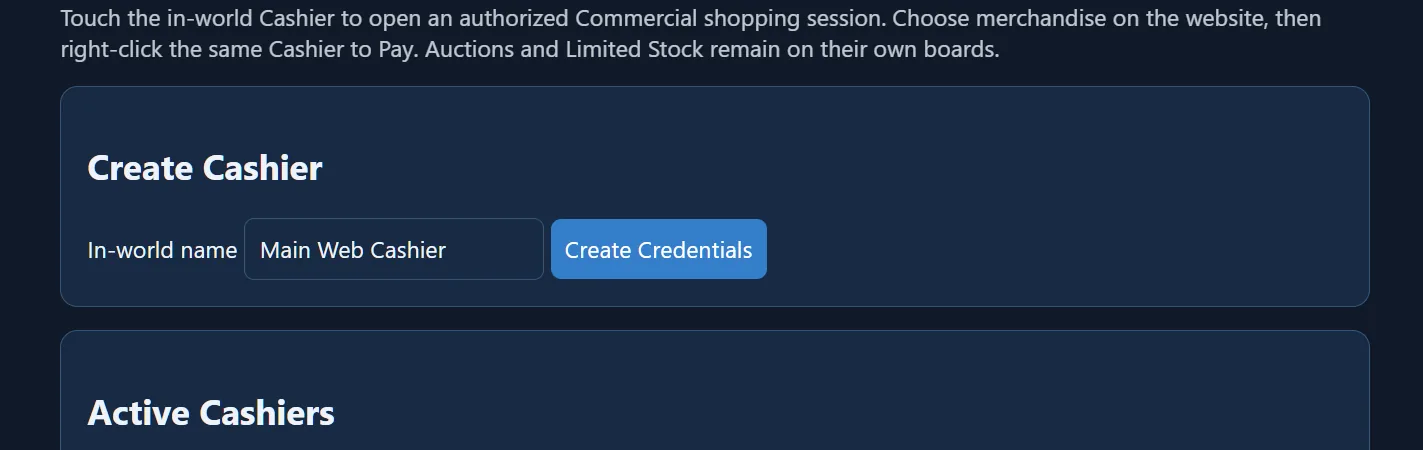
Open Web Cashiers from your private Seller Dashboard. Give each kiosk a recognizable name, select Create Credentials, and paste the three separate Config lines into that Cashier's editable Config notecard.
Never share CASHIER_SECRET publicly. Each physical checkout needs its own Cashier ID and Secret. Keep your Commercial delivery server running: it is what delivers the products after payment.
What customers click in Second Life
The shopper must first touch a Self Checkout (Cashier) in-world. The Cashier opens an authorized browser session with its cart enabled. Simply visiting the public website will not show this cart.
3. Build a cart and pay at that Cashier
- While at the kiosk, touch Self Checkout and accept the prompt to open the website.
- Use the private Cashier shopping session to browse eligible regular Commercial products.
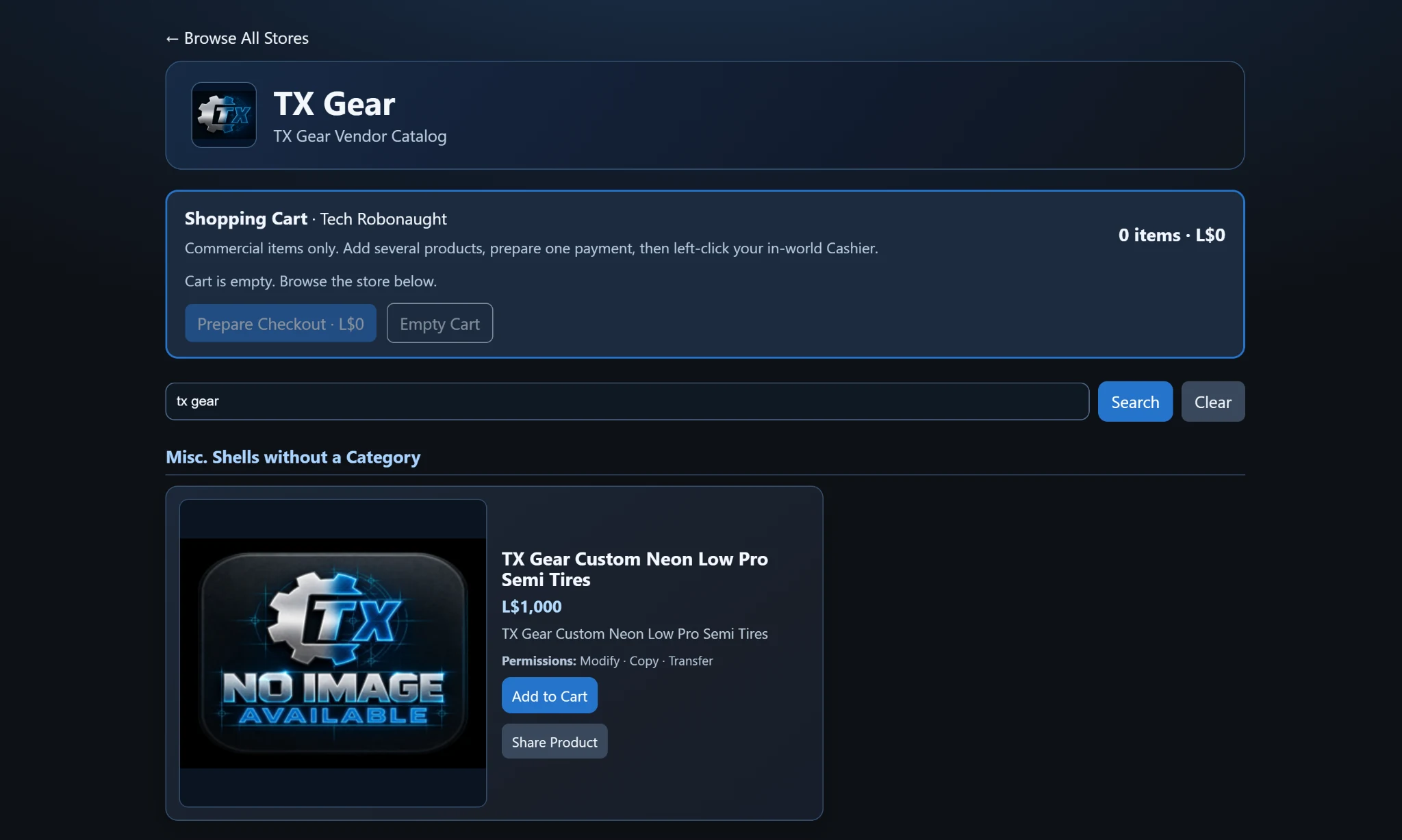
- Choose Add to Cart, review the cart, and remove items if needed.
- Select Prepare Checkout. The kiosk displays the verified combined total.
- Pay once in Second Life at the same Cashier. The Commercial delivery server sends the purchased items individually; the kiosk reports delivery progress.
If the Cashier says that payment needs seller review, do not pay again. Wait for the seller to check the transaction.
4. Customer lock and checkout safety
A Cashier reserves the active session for the avatar who touched it. The proximity check follows that avatar only, so customers using nearby Cashiers cannot take over the session. An unpaid session receives a short grace period after the shopper leaves. After payment, the Cashier stays reserved until deliveries finish or a seller handles a problem.
- Commercial delivery server is online.
- Each Cashier has its own ID and secret.
- Test adding and removing several products from an in-world Cashier session.
- Pay once and verify that each item arrives once.